> ## Documentation Index
> Fetch the complete documentation index at: https://docs.decisional.com/llms.txt
> Use this file to discover all available pages before exploring further.
# Approvals and Policy
> Control when agents pause, ask for review, bypass approvals, or block actions
## Overview
Approvals are Decisional's human-in-the-loop control system. They let an agent prepare work, show the relevant context, and pause before a sensitive action proceeds.
Approvals can appear during automated runs, Chat Mode write actions, Run Mode flows, and workflow gates. They are especially useful when an agent is about to send information, update a system, make a decision with business impact, or continue past a manual review point.
## Where approvals appear
The agent pauses before an action that writes, sends, updates, creates, or deletes information.
A workflow can pause at an explicit review step before moving to the next node.
If an agent wants to take a write action during chat, it can ask for approval before executing.
Stakeholders can review context and approve or reject without needing the full builder interface.
## What an approval contains
An approval should give the reviewer enough context to make a decision without digging through logs.
Approvals typically include:
* The action the agent wants to take
* The relevant run, node, or chat context
* Inputs and generated outputs
* Files or records involved in the decision
* Approve and reject controls
* Any notes the reviewer adds before continuing
When an approval is accepted, the run continues. When it is rejected, the agent stops, routes to the configured rejection path, or asks for a correction depending on the workflow.
See how Dex asks for approval in Slack before creating a Linear issue.
## Approval layers
Approval behavior comes from multiple layers working together.
| Layer | What it controls | Typical options |
| ----------------------------------- | ---------------------------------------------------------- | ------------------------------------------- |
| **Workspace default approval mode** | The account default used when a runner is set to Default | Ask approvals or Bypass approvals |
| **Runner approval picker** | The approval mode for the current chat or run prompt box | Default, Ask approvals, or Bypass approvals |
| **Tool approval policy** | How toolkit read/write tools and per-tool overrides behave | Always allow, Needs approval, or Blocked |
| **Workflow gates** | Manual review points designed into the workflow | Approver list, quorum, approve, reject |
Use these layers together. For example, a low-risk reporting agent might bypass eligible approval prompts, while a finance agent can keep write tools on **Needs approval** and add gate nodes for final review.
## Workspace default and runner picker
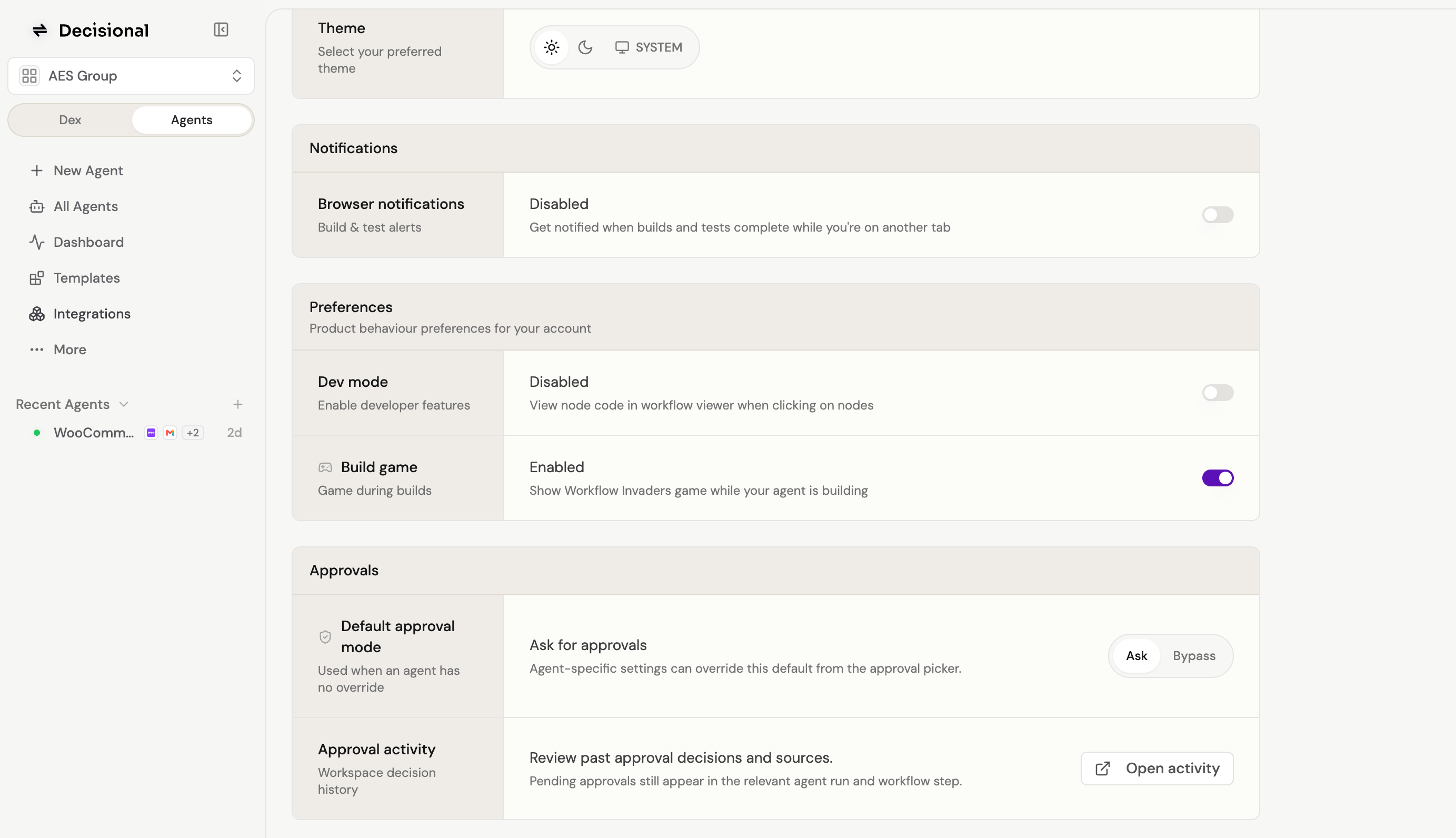
The workspace default is the fallback approval mode. It is used only when the runner is set to **Default**.
 The prompt-box approval picker controls the runner you are about to use. The **Default** option shows the effective workspace default in parentheses. If the picker says **Default (Bypass approvals)**, choosing Default means eligible approval prompts will be bypassed.
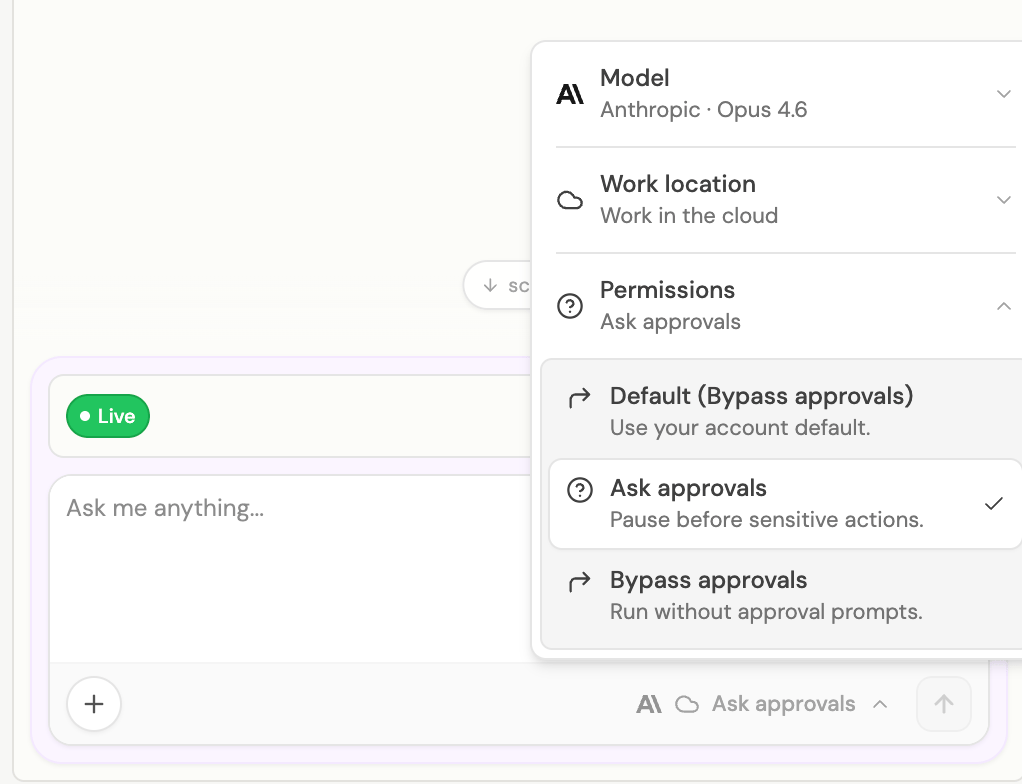 For live runs, choose **Ask approvals** in the runner picker when you want the agent to pause before eligible sensitive actions. If the live runner is set to **Default** and the effective default is bypass, the run continues without approval prompts.
Test runs are the best place to keep Ask approvals on while you review behavior. Live runs only pause for approval when the effective runner setting is Ask approvals, when tool policy requires approval, or when the workflow reaches an explicit gate.
## Ask approvals
**Ask approvals** means the agent pauses before eligible sensitive actions. A reviewer sees what the agent wants to do and chooses whether to approve or reject.
Use Ask approvals when:
* The agent is new or still being tuned
* Outputs leave your company or affect customers
* The workflow changes records in important systems
* A human needs accountability for the final decision
* You want an audit trail of manual sign-off
## Bypass approvals
**Bypass approvals** means eligible approval prompts are approved automatically so the run can continue without waiting for a human click.
Bypass approvals are useful for stable, low-risk workflows where the agent's behavior is well understood. Bypass does not turn blocked tools into allowed tools. A blocked action remains blocked, and tool policy should still be used for actions that must never run.
Use bypass carefully:
* Start new agents with Ask approvals until the workflow is predictable
* Keep destructive or externally visible actions behind tool policy or explicit review
* Review run history after enabling bypass
* Prefer bypass for repeatable internal tasks with clear inputs and low blast radius
## Settings and workspace policy
The Settings page contains the workspace approval default that runners use when they are set to **Default**.
From Settings, admins can manage:
* The default approval mode used when a runner has no override
* Toolkit defaults for read tools and write tools
* Per-tool overrides for actions that should always be allowed, require approval, or be blocked
* Team access and workspace configuration that affects who can approve or operate agents
The effective behavior is the combination of the workspace default, the runner picker, tool policy, and any workflow gates.
Bypass approvals should be treated as an operating policy, not a shortcut around governance. Keep blocked tools blocked, and keep human review on workflows where the business risk requires it.
## Recommended rollout
Keep new agents in Ask approvals while you test the workflow, review outputs, and tune instructions.
In the toolkit tools view, allow safe read actions, require approval for sensitive write actions, and block tools the workspace should not use.
Put explicit workflow gates before final send, publish, payment, record update, or escalation steps.
Once a workflow is stable, enable Bypass approvals for agents where waiting for human review is no longer necessary.
Review run history, failures, and approval outcomes to keep the policy aligned with the workflow's risk.
## Related docs
See how approvals behave across Chat Mode, Operator Mode, and Run Mode.
Learn where action nodes and gate nodes fit inside a workflow.
For live runs, choose **Ask approvals** in the runner picker when you want the agent to pause before eligible sensitive actions. If the live runner is set to **Default** and the effective default is bypass, the run continues without approval prompts.
Test runs are the best place to keep Ask approvals on while you review behavior. Live runs only pause for approval when the effective runner setting is Ask approvals, when tool policy requires approval, or when the workflow reaches an explicit gate.
## Ask approvals
**Ask approvals** means the agent pauses before eligible sensitive actions. A reviewer sees what the agent wants to do and chooses whether to approve or reject.
Use Ask approvals when:
* The agent is new or still being tuned
* Outputs leave your company or affect customers
* The workflow changes records in important systems
* A human needs accountability for the final decision
* You want an audit trail of manual sign-off
## Bypass approvals
**Bypass approvals** means eligible approval prompts are approved automatically so the run can continue without waiting for a human click.
Bypass approvals are useful for stable, low-risk workflows where the agent's behavior is well understood. Bypass does not turn blocked tools into allowed tools. A blocked action remains blocked, and tool policy should still be used for actions that must never run.
Use bypass carefully:
* Start new agents with Ask approvals until the workflow is predictable
* Keep destructive or externally visible actions behind tool policy or explicit review
* Review run history after enabling bypass
* Prefer bypass for repeatable internal tasks with clear inputs and low blast radius
## Settings and workspace policy
The Settings page contains the workspace approval default that runners use when they are set to **Default**.
From Settings, admins can manage:
* The default approval mode used when a runner has no override
* Toolkit defaults for read tools and write tools
* Per-tool overrides for actions that should always be allowed, require approval, or be blocked
* Team access and workspace configuration that affects who can approve or operate agents
The effective behavior is the combination of the workspace default, the runner picker, tool policy, and any workflow gates.
Bypass approvals should be treated as an operating policy, not a shortcut around governance. Keep blocked tools blocked, and keep human review on workflows where the business risk requires it.
## Recommended rollout
Keep new agents in Ask approvals while you test the workflow, review outputs, and tune instructions.
In the toolkit tools view, allow safe read actions, require approval for sensitive write actions, and block tools the workspace should not use.
Put explicit workflow gates before final send, publish, payment, record update, or escalation steps.
Once a workflow is stable, enable Bypass approvals for agents where waiting for human review is no longer necessary.
Review run history, failures, and approval outcomes to keep the policy aligned with the workflow's risk.
## Related docs
See how approvals behave across Chat Mode, Operator Mode, and Run Mode.
Learn where action nodes and gate nodes fit inside a workflow.