> ## Documentation Index
> Fetch the complete documentation index at: https://docs.decisional.com/llms.txt
> Use this file to discover all available pages before exploring further.
# Custom Integrations
> Turn API documentation and an API key into tools that Decisional agents can use
## Connect an API That Is Not in the Catalog
A custom integration lets Decisional agents work with an API that does not already have a built-in integration. Give Dex the API documentation, explain what the agent needs to do, and provide a test credential when the API requires one. Dex builds and tests the tools for you.
You do not need to write the integration code yourself. A clear API reference and a working way to authenticate are usually enough to get started.
 Use a custom integration for an internal system, partner API, or less common service when you can provide one of these:
* A developer documentation URL
* An OpenAPI or Swagger specification
* A HAR export captured while using the service
* A cURL example or other request details
Custom integrations work best with documented HTTP APIs that Decisional can reach over the public internet. Private network addresses cannot be called from the builder.
## Build a Custom Integration
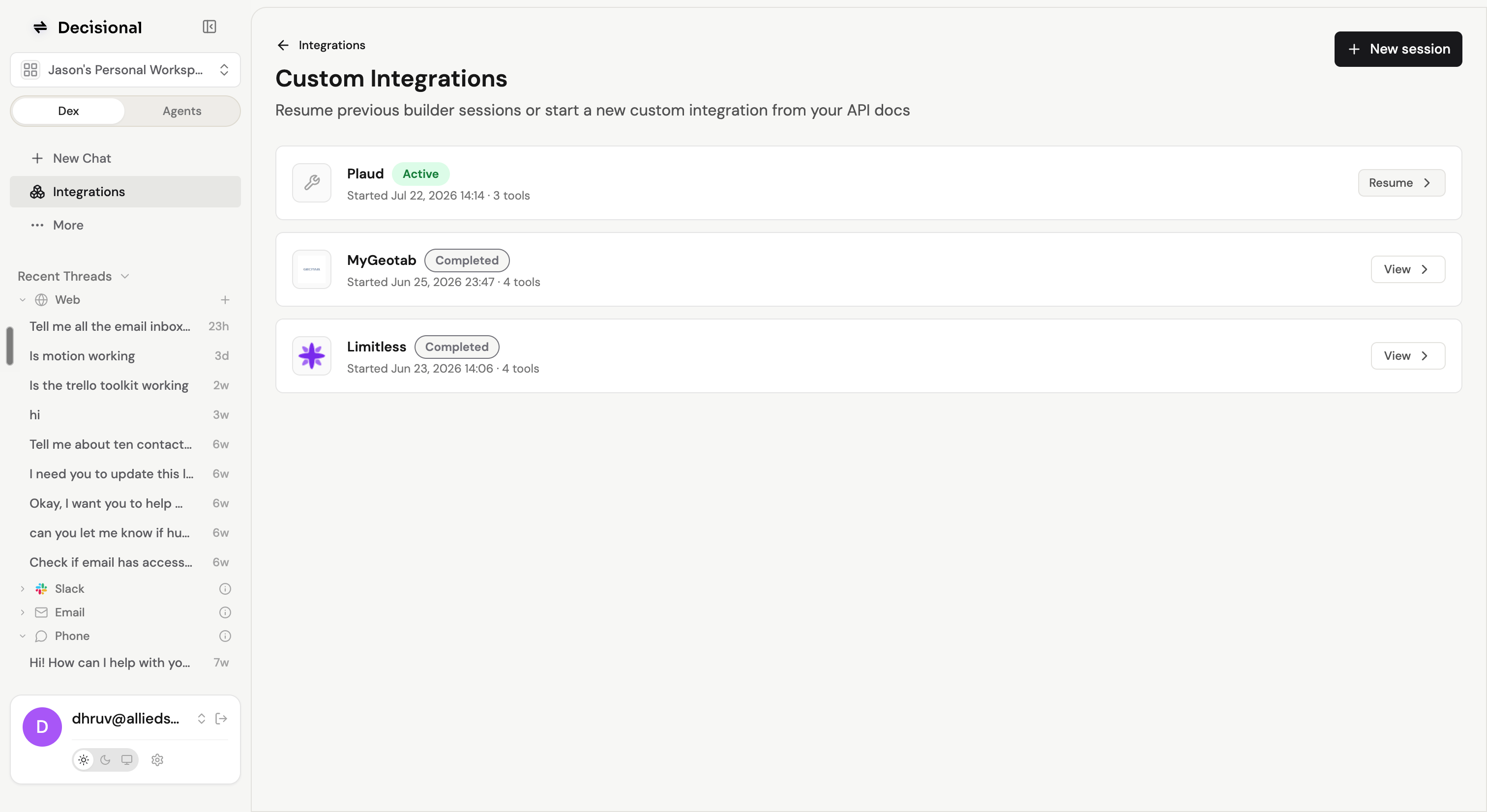
Open **Integrations**, choose **Custom Integrations**, and select **New session**.
Use a custom integration for an internal system, partner API, or less common service when you can provide one of these:
* A developer documentation URL
* An OpenAPI or Swagger specification
* A HAR export captured while using the service
* A cURL example or other request details
Custom integrations work best with documented HTTP APIs that Decisional can reach over the public internet. Private network addresses cannot be called from the builder.
## Build a Custom Integration
Open **Integrations**, choose **Custom Integrations**, and select **New session**.
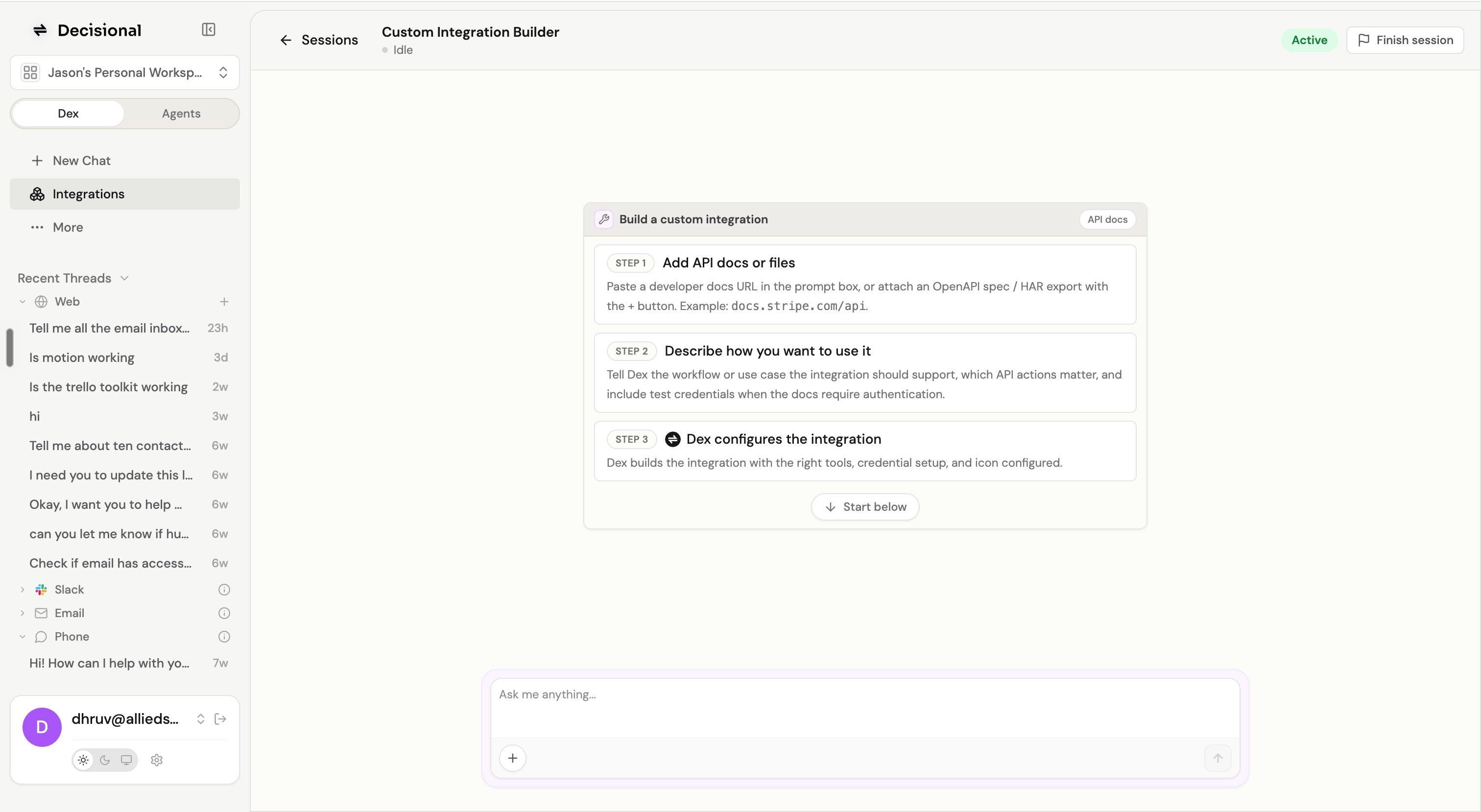 Paste the developer documentation URL into the message box. If the documentation is in a file, use the **+** button to attach an OpenAPI specification or HAR export.
Tell Dex what the agent should read, create, update, or send. Name the few API actions that matter to your workflow instead of asking for every endpoint at once.
If the API requires authentication, provide a working test API key or the requested test account details. Dex uses it to replay a real request, confirm the authentication method, and test each tool.
Dex starts with a useful read-only action, tests its response, and then adds the remaining actions. Each action becomes a named tool with clear inputs and outputs.
When the integration card appears, select **Connect**. Enter the credential fields Dex configured, such as an API key, base URL, account ID, or region. This is the credential the agent will use after setup.
Select **Finish session** when the tools and credential setup are correct. The integration remains available on your organization's Integrations page and can be added to agents.
## What Dex Creates
Dex turns the API into the same building blocks used by other Decisional integrations:
| Part | What it does |
| -------------------------- | ------------------------------------------------------------------------------- |
| **Integration card** | Gives the API a name, description, and icon in the Integrations catalog |
| **Credential form** | Asks users for the values the API needs, such as an API key or account URL |
| **Tools** | Gives agents specific operations such as “Find a customer” or “Create an order” |
| **Validation check** | Checks whether a connected credential can reach the API |
| **Authentication refresh** | Can refresh supported short-lived authentication when the API requires it |
Read tools only look up information. Write tools create or change something in the external system and are marked separately so your normal approval policy can protect them.
Start small. Build and test one important read action before adding write actions. It is easier to confirm the data and permissions before the integration can change anything.
## Tell Dex Exactly What You Need
A useful request includes the documentation, authentication method, desired actions, and one safe example to test.
```text theme={null}
Build a custom integration for Acme CRM.
API docs: https://docs.example.com/api
Authentication: API key in the X-API-Key header
Create these tools:
1. Find a customer by email — read only
2. List open orders for a customer — read only
3. Add a note to a customer — write action
Use the test account and API key I provide. Test reads with customer
alex@example.com. Ask for approval before the write action.
```
If the documentation is incomplete, attach a HAR export recorded while you perform the action in the app. Dex can use the captured request to identify the endpoint, headers, and request body. Only capture traffic for the service you intend to connect.
## API Keys and Other Credentials
The builder needs a working test credential to prove that the integration works. Use a separate, low-permission test key when possible.
During the builder session, Dex uses the test value only to test requests and the authentication check. It does not place the secret in the tool code, the integration description, or the credential form definition.
After the integration is created, connect the account through the generated **Connect** form. Do not paste API keys into agent instructions or workflow nodes. The tools read the selected credential securely when they run.
Treat a HAR file as sensitive. It can contain cookies, authorization headers, and private request data. Use a test account, remove unrelated traffic, and revoke temporary credentials after setup when appropriate.
## Sessions and Sharing
Each builder session creates one integration.
| Session status | What it means |
| -------------- | ----------------------------------------------------------------------------------- |
| **Active** | You can select **Resume** and continue working with Dex |
| **Completed** | The session is read-only; select **View** to review the work |
| **Expired** | The builder workspace is no longer active; start a new session to continue building |
The session history is private to its creator. The custom integration itself belongs to the organization, so other organization members can find it on the Integrations page, connect their permitted credentials, and add its tools to agents.
## Use the Integration in an Agent
After connecting the integration:
1. Open an agent and unlock it to create an editable Draft if needed.
2. Ask Dex to add the custom integration and name the tools the workflow should use.
3. Open the integration in the right-hand panel and map a credential to each tool.
4. Test the agent with a small example.
5. Inspect the run and confirm each node received and returned the expected data before publishing.
Learn how integrations, tools, and credentials are shown and mapped in an agent.
Learn how connected accounts and tool credentials are managed.
Paste the developer documentation URL into the message box. If the documentation is in a file, use the **+** button to attach an OpenAPI specification or HAR export.
Tell Dex what the agent should read, create, update, or send. Name the few API actions that matter to your workflow instead of asking for every endpoint at once.
If the API requires authentication, provide a working test API key or the requested test account details. Dex uses it to replay a real request, confirm the authentication method, and test each tool.
Dex starts with a useful read-only action, tests its response, and then adds the remaining actions. Each action becomes a named tool with clear inputs and outputs.
When the integration card appears, select **Connect**. Enter the credential fields Dex configured, such as an API key, base URL, account ID, or region. This is the credential the agent will use after setup.
Select **Finish session** when the tools and credential setup are correct. The integration remains available on your organization's Integrations page and can be added to agents.
## What Dex Creates
Dex turns the API into the same building blocks used by other Decisional integrations:
| Part | What it does |
| -------------------------- | ------------------------------------------------------------------------------- |
| **Integration card** | Gives the API a name, description, and icon in the Integrations catalog |
| **Credential form** | Asks users for the values the API needs, such as an API key or account URL |
| **Tools** | Gives agents specific operations such as “Find a customer” or “Create an order” |
| **Validation check** | Checks whether a connected credential can reach the API |
| **Authentication refresh** | Can refresh supported short-lived authentication when the API requires it |
Read tools only look up information. Write tools create or change something in the external system and are marked separately so your normal approval policy can protect them.
Start small. Build and test one important read action before adding write actions. It is easier to confirm the data and permissions before the integration can change anything.
## Tell Dex Exactly What You Need
A useful request includes the documentation, authentication method, desired actions, and one safe example to test.
```text theme={null}
Build a custom integration for Acme CRM.
API docs: https://docs.example.com/api
Authentication: API key in the X-API-Key header
Create these tools:
1. Find a customer by email — read only
2. List open orders for a customer — read only
3. Add a note to a customer — write action
Use the test account and API key I provide. Test reads with customer
alex@example.com. Ask for approval before the write action.
```
If the documentation is incomplete, attach a HAR export recorded while you perform the action in the app. Dex can use the captured request to identify the endpoint, headers, and request body. Only capture traffic for the service you intend to connect.
## API Keys and Other Credentials
The builder needs a working test credential to prove that the integration works. Use a separate, low-permission test key when possible.
During the builder session, Dex uses the test value only to test requests and the authentication check. It does not place the secret in the tool code, the integration description, or the credential form definition.
After the integration is created, connect the account through the generated **Connect** form. Do not paste API keys into agent instructions or workflow nodes. The tools read the selected credential securely when they run.
Treat a HAR file as sensitive. It can contain cookies, authorization headers, and private request data. Use a test account, remove unrelated traffic, and revoke temporary credentials after setup when appropriate.
## Sessions and Sharing
Each builder session creates one integration.
| Session status | What it means |
| -------------- | ----------------------------------------------------------------------------------- |
| **Active** | You can select **Resume** and continue working with Dex |
| **Completed** | The session is read-only; select **View** to review the work |
| **Expired** | The builder workspace is no longer active; start a new session to continue building |
The session history is private to its creator. The custom integration itself belongs to the organization, so other organization members can find it on the Integrations page, connect their permitted credentials, and add its tools to agents.
## Use the Integration in an Agent
After connecting the integration:
1. Open an agent and unlock it to create an editable Draft if needed.
2. Ask Dex to add the custom integration and name the tools the workflow should use.
3. Open the integration in the right-hand panel and map a credential to each tool.
4. Test the agent with a small example.
5. Inspect the run and confirm each node received and returned the expected data before publishing.
Learn how integrations, tools, and credentials are shown and mapped in an agent.
Learn how connected accounts and tool credentials are managed.