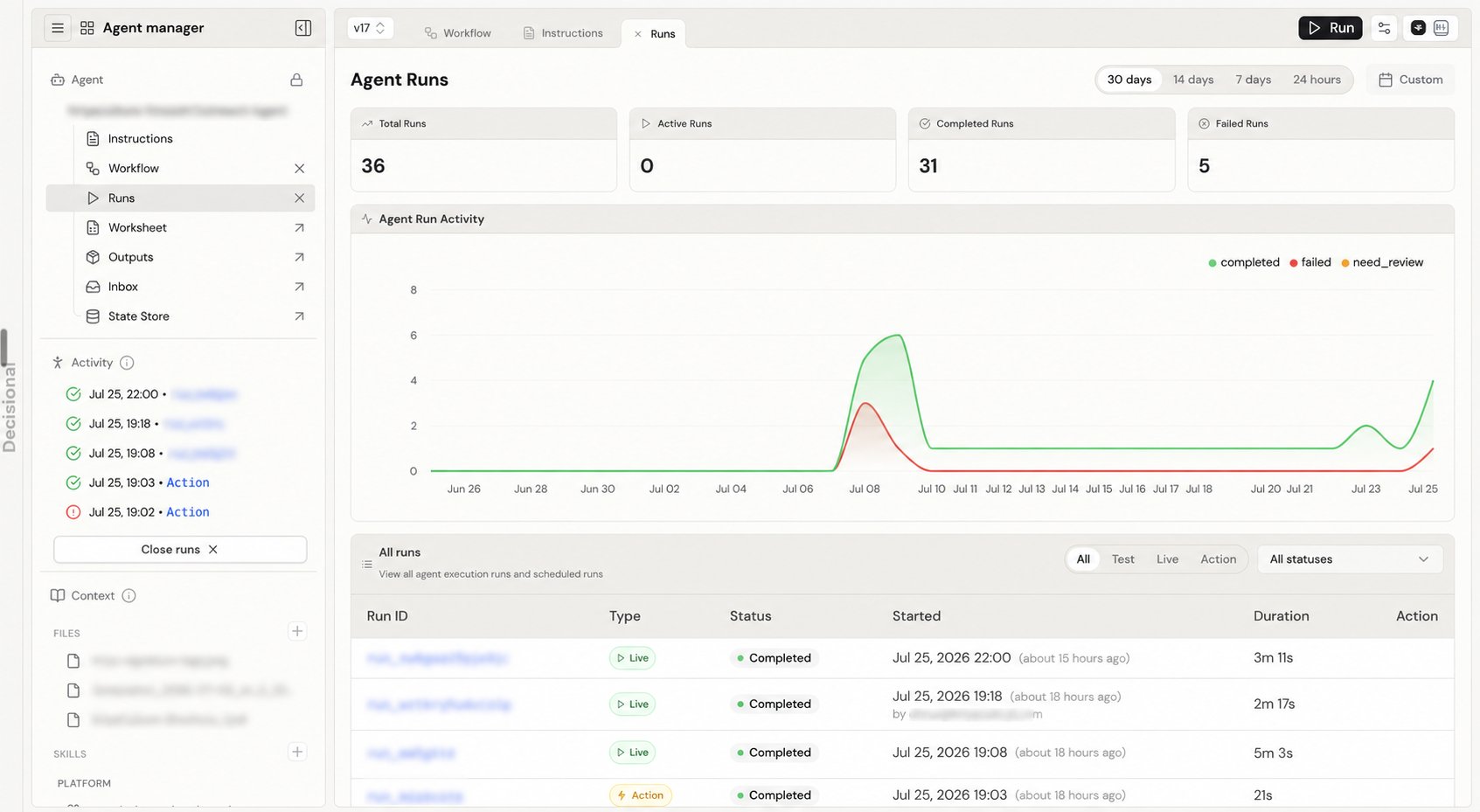
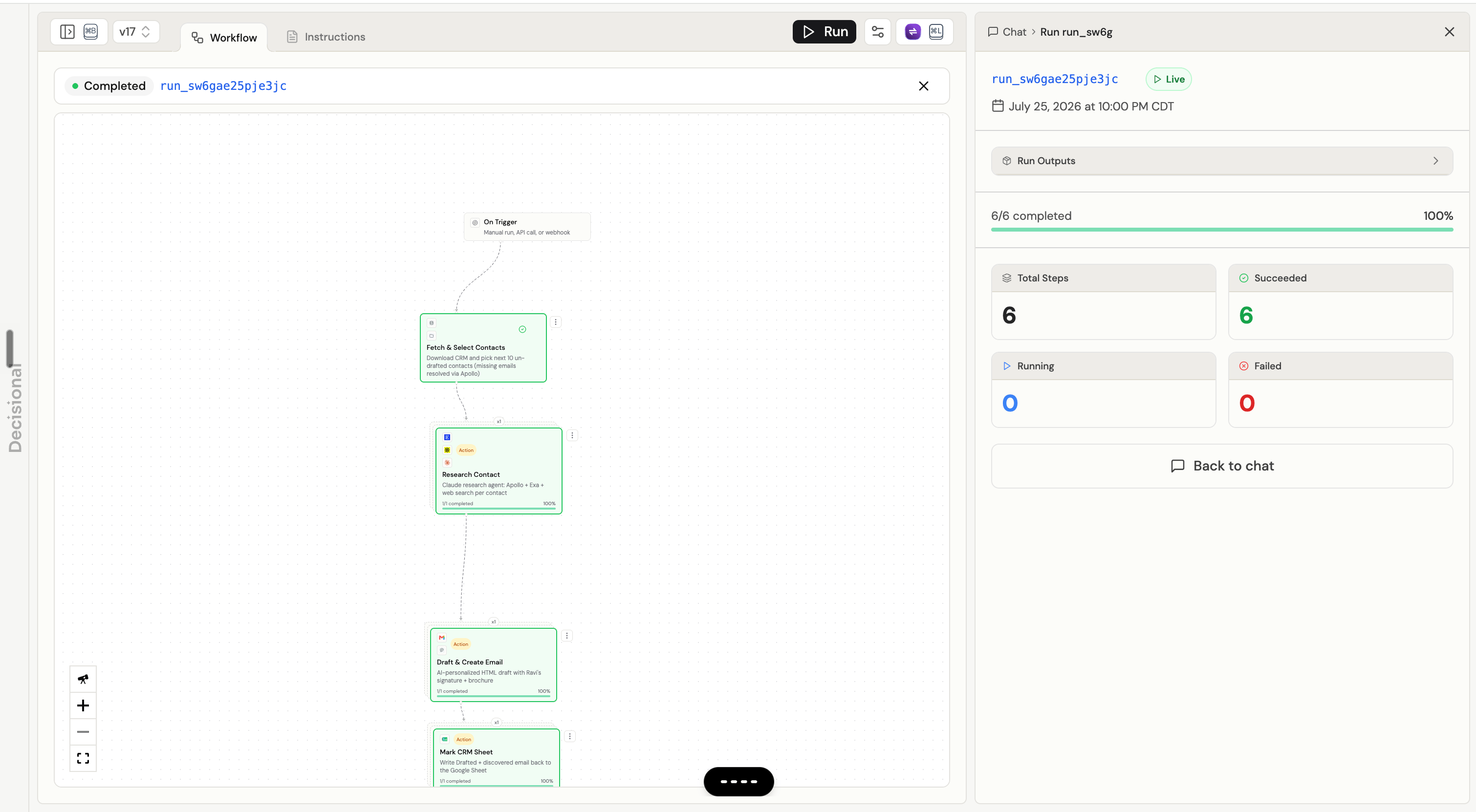
What Are Runs?
A run is a single execution of your agent’s workflow. Every time your agent performs its task—whether triggered manually, by schedule, or by event—that’s a run.Manual Run
You click “Test Run” button
Scheduled Run
Runs at 9 AM every day
Event Run
Triggered by new email or webhook
API Run
Executed via API call
Run Statuses
Every run has a status that tells you what’s happening:Running
Running
What it means: The agent is currently executingWhat you see:
- Real-time progress in the run log
- AI reasoning step-by-step
- Updates as data is processed
- Watch live progress
- Cancel if needed
Completed
Completed
What it means: The agent finished successfullyWhat you see:
- Full execution log
- All outputs written
- Summary of what was done
- Green checkmark icon
- “Completed” badge
- Final timestamp
- Review results
- Download logs
- Re-run if needed
Failed
Failed
What it means: The agent encountered an errorWhat you see:
- Error message
- Stack trace (if available)
- Where it failed in the workflow
- Red X icon
- “Failed” badge
- Error details in logs
- Read error message
- Debug the issue
- Fix and retry
Needs Review
Needs Review
What it means: The agent is waiting for human approval (human-in-the-loop)What you see:
- What the agent wants to do
- Why it needs approval
- Options to approve/reject/modify
- Yellow pause icon
- “Needs Review” badge
- Notification sent (if configured)
- Review the decision
- Approve to continue
- Reject to stop
- Modify and approve
Canceled
Canceled
What it means: You or another user stopped the runWhat you see:
- Partial results (what was done before cancellation)
- “Canceled by [user]” message
- Timestamp of cancellation
- Gray ban icon
- “Canceled” badge
- Review partial work
- Start a new run if needed
Viewing Run History
Access all past runs from the Runs tab.1
Navigate to Runs
In your agent page, click the Runs tab in the left sidebar
2
Browse History
See a list of all executions sorted by date (newest first)
3
Filter & Search
Use filters to find specific runs:
- Status (Completed, Failed, etc.)
- Date range
- Trigger type
4
Click for Details
Click any run to see full logs and details
Run List View
Each run in the list shows:| Column | Description |
|---|---|
| Status | Visual indicator (✅❌⏸️) |
| Start Time | When the run began |
| Duration | How long it took (or “In progress…”) |
| Trigger | Manual, Schedule, Event, API |
| Items Processed | How many rows/items (if applicable) |
| User | Who triggered it (for manual runs) |
Understanding Run Logs
Logs show you exactly what your agent did and why.Log Structure
- Execution Timeline
- AI Reasoning
- Source Citations
- Integration Activity
Chronological view of all actions:
Log Details
Click any log entry to expand and see:- Full context: What led to this action
- Input data: What the agent received
- Output data: What the agent produced
- Timing: How long this step took
- Citations: Which sources were used
Debugging Failed Runs
When a run fails, follow these steps to identify and fix the issue.Debugging Workflow
1
Read the Error Message
The error message tells you what went wrong:Common errors:
- “Source not found” → Source was deleted or renamed
- “Column ‘XYZ’ not found” → Column name changed or misspelled
- “API rate limit exceeded” → Too many requests to external service
- “Formula error in cell B5” → Worksheet formula is broken
2
Find Where It Failed
Look at the execution timeline to see the last successful step before failure.Example:Row 7 is the problem.
3
Reproduce in AI Assistant
Use the AI Assistant to test the failing scenario:This lets you debug interactively.
4
Identify Root Cause
Common causes:Data issues:
- Missing required fields
- Invalid formats (wrong date format, non-numeric text)
- Unexpected values
- Source deleted or renamed
- Integration disconnected
- Column names changed
- Instructions don’t handle edge case
- Missing validation rules
- Incorrect formula in worksheet
5
Fix the Issue
Based on root cause:Data issues: Clean the data, add validation
Configuration issues: Reconnect integration, re-upload source
Logic issues: Update instructions, add error handling
6
Retry the Run
Click Retry on the failed run to re-execute with the fix
Common Failures & Solutions
Source not found
Source not found
Error:
Source "Price List 2024.xlsx" not foundCause: Source was deleted, renamed, or never uploadedSolution:- Go to Sources tab
- Check if source exists
- If renamed, update instructions with new name
- If deleted, re-upload the source
Column not found
Column not found
Error:
Column "Customer Name" not found in worksheetCause: Column was renamed, deleted, or misspelled in instructionsSolution:- Open the worksheet
- Verify column name (check spelling and case)
- Update instructions to match exact column name
- Or rename column to match instructions
Integration error
Integration error
Error:
Gmail integration failed: Authentication expiredCause: Integration was disconnected or credentials expiredSolution:- Go to Settings → Integrations
- Find the failing integration
- Click Reconnect
- Authorize again
- Retry the run
Formula error
Formula error
Error:
Formula error in cell E5: #DIV/0!Cause: Worksheet formula dividing by zero or referencing invalid cellsSolution:- Open worksheet and navigate to cell E5
- Check the formula
- Fix the formula (e.g., add IF check for zero)
- Save worksheet
- Retry run
Timeout error
Timeout error
Error:
Run timed out after 10 minutesCause: Processing too much data or very slow external APISolution:- Process in smaller batches (e.g., 100 rows at a time)
- Optimize sources (remove unnecessary documents)
- Simplify instructions (fewer complex steps)
- Check external APIs (slow response times)
Run Actions
Manual Run
Click Test Run to execute your agent immediately. Use when:- Testing new agent
- Processing one-off task
- Debugging an issue
- Verifying a fix
Retry Run
Click Retry on a completed or failed run to execute again with the same inputs. Use when:- Run failed due to temporary issue (API downtime)
- You fixed the problem and want to reprocess
- Testing if your fix worked
Cancel Run
Click Cancel while a run is in progress to stop execution. What happens:- Agent stops processing
- Partial results may be saved
- Run marked as “Canceled”
- Realized you need to make a change
- Processing wrong data
- Emergency stop needed
Download Logs
Click Download Logs to export the full execution log as a text file. Use when:- Sharing with support team
- Archiving for compliance
- Detailed offline analysis
- Debugging complex issues
Performance Monitoring
Track your agent’s performance over time.Key Metrics
Success Rate
Formula: (Completed runs / Total runs) × 100%Good: > 95%
Needs attention: < 90%Improve by:
- Better error handling
- Data validation
- More robust instructions
Average Duration
What to track: Median run timeBenchmarks:
- Simple tasks: < 30 seconds
- Medium complexity: 1-3 minutes
- Complex workflows: 5-10 minutes
- Reduce source count
- Optimize worksheet structure
- Process in parallel
Items Per Run
What to track: How many items processed per runBenchmarks:
- Small batches: 10-50 items
- Medium batches: 50-500 items
- Large batches: 500+ items
- Batch processing
- Parallel execution
- Efficient data structure
Manual Review Rate
Formula: (Runs needing review / Total runs) × 100%Good: < 10% (for most workflows)
Too high: > 30% (agent isn’t confident)Improve by:
- Better training data
- Clearer instructions
- More comprehensive sources
Viewing Performance Trends
- Success Rate Over Time
- Duration Trends
- Failure Patterns
Track success rate weekly or monthly:Goal: Upward trend toward 95%+
Advanced Run Management
Scheduled Runs
View upcoming and past scheduled executions. Upcoming runs:- Next execution time
- Trigger configuration
- Expected duration (based on history)
- Filter by “Scheduled” trigger type
- See execution pattern (daily, weekly, etc.)
- Identify missed runs (if any)
Bulk Actions
Manage multiple runs at once:- Retry all failed runs from the past 24 hours
- Download logs for all runs in a date range
- Export run data to CSV for analysis
Run Notifications
Get alerted when important events happen:Email Notifications
Email Notifications
Configure in Settings → Notifications:Options:
- Run completed (all runs or only failures)
- Run needs review (human-in-the-loop)
- Run duration exceeds threshold
- Run failed after 3 retries
Slack Notifications
Slack Notifications
Post to Slack channel when:Options:
- Agent completes run
- Agent fails
- Agent needs approval
- Daily summary (runs completed, failed, avg duration)
- Connect Slack integration
- Go to Settings → Notifications
- Enable “Send to Slack”
- Choose channel
Webhook Notifications
Call your API when runs complete:Payload:Use case: Integrate with your own monitoring/alerting system
Best Practices
Monitor regularly: Check run history at least weekly
Investigate failures immediately: Don’t let failed runs accumulate
Track trends: Look for patterns (time of day, specific data causing issues)
Set up notifications: Don’t rely on manually checking
Archive old logs: Download and store logs for compliance/audit
Test before scheduling: Always manually test before enabling schedule
Document fixes: When you debug an issue, note the solution for future reference
Troubleshooting
Runs not appearing in history
Possible causes:
- Filter applied: Clear all filters
- Wrong agent: Make sure you’re viewing correct agent
- Date range: Expand date range to “All time”
Can't cancel running agent
Possible causes:
- Already completing: Agent is finishing up
- Permission issue: You need Editor role or higher
- Browser issue: Refresh page and try again
Logs not showing details
Possible causes:
- Old run: Logs older than 90 days are archived (Enterprise has longer retention)
- Log level: Some details hidden based on plan
- Incomplete run: Run was canceled before logging completed