

What Are Agent Instructions?
Instructions are the operating guide for an agent. They explain the goal, the order of work, the rules to follow, and what a successful result looks like. Instructions also connect the written process to the exact tools the agent can run. An instruction can say “enrich this person,” but the tool declaration tells Decisional to use a specific Apollo operation with a specific credential.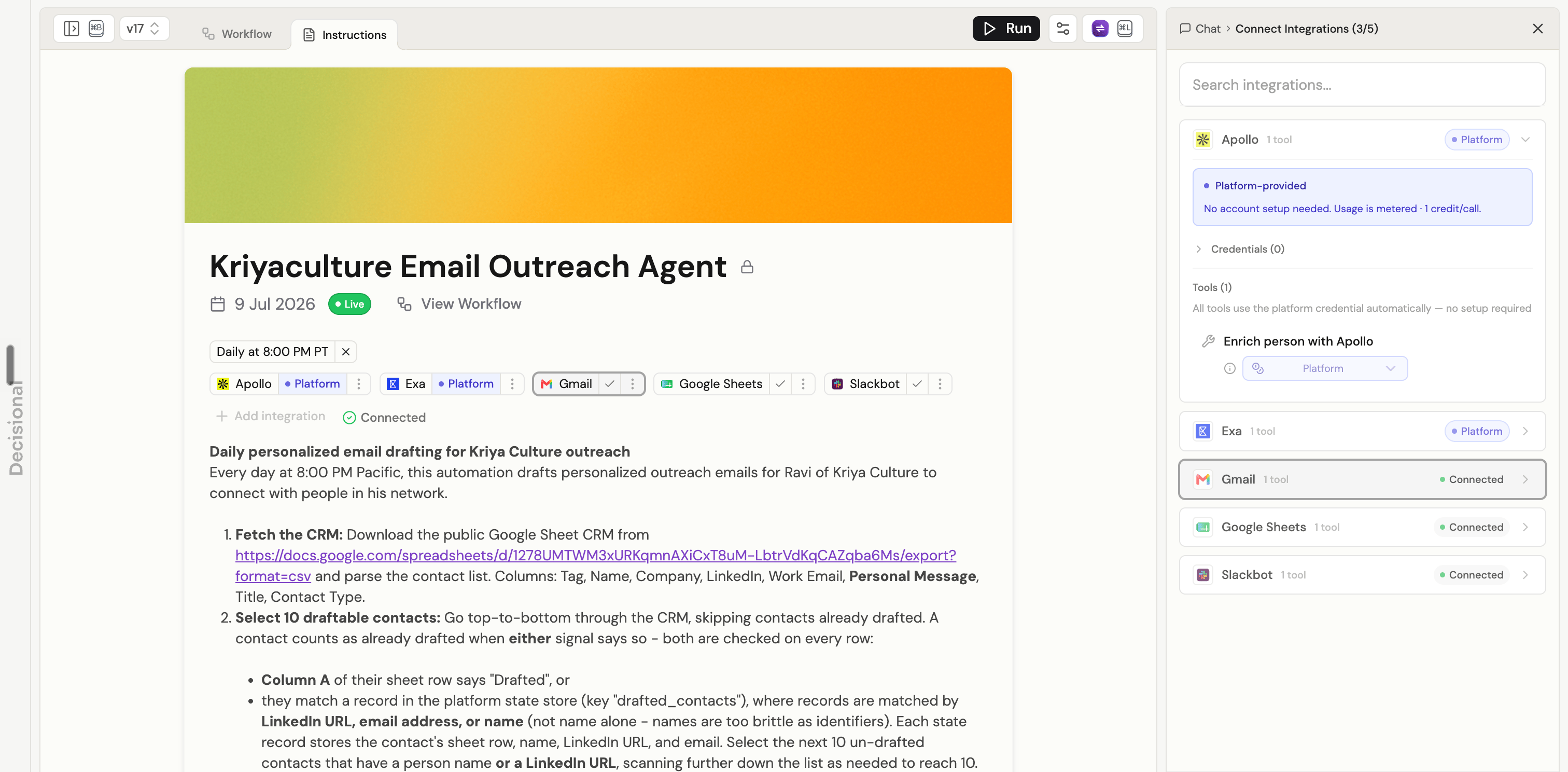
A Live agent's Instructions page with integration chips above the instructions and the connection details open on the right.
- The instruction body explains the daily outreach process in plain English
- The chips above the instructions show the integrations used by the agent
- Apollo and Exa use Decisional’s platform credentials
- Gmail, Google Sheets, and Slackbot use connected accounts
- The right panel shows the exact Apollo tool, Enrich person with Apollo, and the credential assigned to it
- The lock beside the agent name shows that the Live version is read-only
Integrations
An integration is the connection layer for an app or service, such as Apollo, Gmail, Google Sheets, or Slack. The integration chips above the instructions give you a quick connection summary:
Click an integration chip to open Connect Integrations in the right-hand panel over the chat. The panel lists the credentials, tools, and triggers attached to that integration without taking you away from the instructions. With the panel open, hover over an integration chip or integration row to highlight its matching location on the other side.
Adding an integration does not give the agent every action in that app. The agent receives only the tools declared for its instructions and workflow.
Tools Declared in Instructions
A tool is one specific operation inside an integration. Gmail is an integration; Create email draft and Send email are two different Gmail tools. Apollo is an integration; Enrich person with Apollo is one Apollo tool. Dex declares the exact tool where it is needed in the instructions. The editor displays that declaration as an inline tool chip. Hover over an inline tool chip to highlight the same tool in the right-hand connection panel. Hover over a tool in the connection panel to highlight the exact place it is declared in the instructions. Both locations receive a visible outline, making it easy to follow the tool from the written step to its credential mapping. Click an inline tool chip to open its integration in the right-hand panel over the chat. The matching tool is shown with the credential it will use, such as a specific Gmail account or the Decisional Platform credential.Find Where a Tool Is Used
1
Open an integration
Click an integration chip above the instructions. The connection panel opens on the right while the instructions remain visible.
2
Expand its tools
Open the integration to see every tool declared for this agent and the credential selected for each one.
3
Hover over a tool
Hover over a tool in the right-hand panel. Decisional highlights the matching inline declaration in the instructions, showing exactly where that tool is used.
4
Check the credential
Read the credential selector directly below the tool. It shows whether that instruction uses a platform credential, a connected account, a simulated credential, or no credential.
Behind the editor, each tool has a stable tool name such as
APOLLO_PEOPLE_ENRICHMENT. Dex resolves that name into an inline tool chip and a tool instance for the agent. You normally do not need to type tool names yourself—tell Dex which action the instructions should perform.
Credentials Mapped to Tools
A credential authorizes a tool to use a particular account. Credentials are mapped to tools, not pasted into the written instructions. Each tool declaration has its own mapping:
This per-tool mapping matters when an integration has more than one connected account. Two Gmail tool declarations can use different mailboxes, even when both belong to the Gmail integration.
When Dex adds a tool, Decisional tries to bind it in this order:
- A compatible user or workspace credential that is already connected
- A supported platform credential when the tool is platform-provided
- No credential, which leaves the tool waiting for you to connect or select an account
Multiple Credentials for the Same Tool
An agent can use more than one credential from the same integration. Each tool declaration has its own credential mapping, even when two declarations use the same underlying tool. For example, one agent could use Gmail like this:
The first two steps use the same Gmail search tool, but they are separate declarations and can read from different mailboxes. Ask Dex to declare the tool separately for each purpose, then select the intended account beneath each tool in the connection panel.
The same pattern works for other integrations—for example, reading from two Google Sheets accounts, posting to different Slack workspaces, or using a platform credential for one Apollo read while another Apollo tool uses your connected account.
Swap a Credential Without Rewriting the Workflow
A workflow node declares which tool operation to call. The credential mapping decides which account performs that operation. Because those are separate, you can change a tool’s account without rewriting the instruction or changing the node’s logic.1
Unlock the agent
If the agent is Live, Tested, or otherwise locked, click the lock beside its name to create an editable Draft.
2
Open the integration
Click the integration or inline tool chip to open the right-hand connection panel.
3
Find the exact declaration
Hover over each tool in the panel to highlight where that instance is used in the instructions.
4
Choose another credential
Use the dropdown below that tool to select another compatible connected account or a platform credential when available.
5
Test and publish
Run a small test to confirm the new account can access the expected data and perform the action. Build and publish the Draft when it is ready.
Credentials are not stored inside the workflow node. The node keeps its tool declaration, while Decisional resolves the selected credential securely when the tool runs.
Locking and Unlocking an Agent
The lock protects a stable agent configuration from accidental edits. An agent is read-only when it is in a built, tested, Live, or Paused state. It is also temporarily locked while Decisional is building, patching, or testing it. While locked, you can still read the instructions and click tool chips to inspect their mappings, but you cannot edit the instructions, add integrations, or change credentials.Unlock an Agent
- Open the Instructions tab in Operator Mode.
- Click the lock icon beside the agent name.
- The agent returns to Draft, where you can edit its instructions and connections.
- Build and test the updated draft.
- Publish it when the new version is ready.
A temporary lock shown during Building, Patching, or Testing cannot be removed. Wait for the current operation to finish.
How the Pieces Fit Together
Before publishing, read the instructions from top to bottom, open every integration, confirm each tool has the intended credential, and run a small test.
Related Documentation
Platform Integrations
Learn how Apollo, Exa, Agent Mail, and Linq SMS platform credentials work.
Credentials
Learn how accounts, tool bindings, and workspace access are managed.
Agent Versioning
Learn how drafts, versions, testing, and publishing work together.
Workflows
See how instructions become an executable workflow graph.